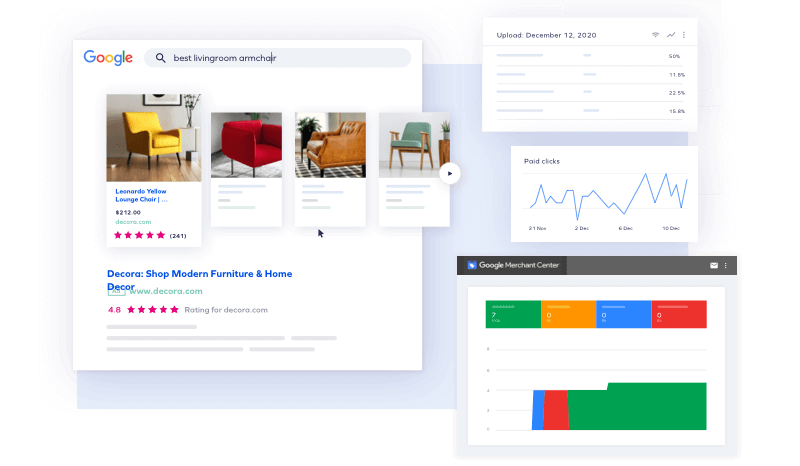
When your Shopping campaigns are underperforming, the cause often lies not in your bid strategy or ad copy, but in your product data. Google Merchant Center diagnostics provide a direct window into the health of your product feed and account. By regularly reviewing this section, you can catch errors and warnings before they lead to disapprovals that kill your product visibility. This article explains how the diagnostics section works, what recent changes mean for merchants, and how to use it to keep your products appearing in front of shoppers.
What Are Google Merchant Center Diagnostics?
The diagnostics section of Google Merchant Center offers insight into issues affecting your products at the account, feed, and individual product level. It displays various errors, warnings, and disapproval notifications. You can find these details by clicking on the “Needs attention” tab in the upper menu of Merchant Center. Note that the name has changed in Merchant Center Next, where the section is now labelled “Needs attention” instead of “Diagnostics”. Additionally, Google has recently moved product diagnostics and promotion data into Google Ads, allowing you to view some issues without opening Merchant Center at all.
Why Diagnostics Matter for Product Visibility
If your products have errors or disapprovals, they cannot appear in Shopping ads or free listings. That directly harms visibility. Warnings, while not immediately blocking, can signal data quality problems that lead to lower performance. Regularly checking diagnostics helps you maintain a clean feed, reduce disapprovals, and ensure that your entire catalogue remains eligible to show. The section shows patterns across multiple products, making it easier to identify systemic problems rather than fixing issues one by one.
Understanding the “Needs Attention” Tab
The “Needs attention” tab is where you find details about issues with your products. It groups errors and warnings so you can see which problems affect the largest number of items. You’ll also find disapproval notifications here and in the main diagnostics area. This tab helps you prioritise fixes by showing the most critical issues first. In Merchant Center Next, the “Needs attention” label replaces the older “Diagnostics” name, but the purpose remains the same: to highlight what requires action.
Key Types of Issues in Diagnostics
Google Merchant Center diagnostics cover three broad levels of issues: account, feed, and product. Understanding each helps you track down the root cause faster.
Account-Level Issues
Account-level issues affect your entire Merchant Center account. They might include suspended feeds, tax configuration problems, or verification errors. These are the most serious because they can block all products from appearing. The diagnostics section flags account-level problems at the top of the issue list so you can address them immediately.
Feed-Level Issues
Feed-level issues apply to entire data sources. For example, if your feed fails to fetch or has a formatting error, all products in that feed could be affected. The diagnostics report highlights these so you can fix the source file rather than editing individual products. Feed-level problems often appear as errors in the “Needs attention” tab.
Item-Level Issues
Item-level issues affect specific products. Common examples include missing GTINs, incorrect prices, or disapproved images. If an item is affected by multiple issues, it will be included in all relevant categories. Checking item-level issues regularly helps you keep the majority of your catalogue live while you fix problematic entries.

Using Issue Severity to Prioritise Fixes
Google provides issue severity information that maps to the prioritisation you see in the diagnostics reports. The Content API distinguishes between different severity levels, such as critical errors and warnings. In the Merchant Center interface, critical issues that block products from showing are highlighted first. Warnings are less urgent but should not be ignored because they can escalate if left unaddressed. By understanding severity, you can focus your time on fixes that have the biggest impact on visibility.
Recent Changes to Diagnostics
Two recent changes affect how merchants interact with diagnostics. First, Google has moved product diagnostics and promotion data into Google Ads. This means you can now review certain product issues without leaving the advertising interface. Second, in Merchant Center Next, the “Diagnostics” section has been renamed to “Needs attention”. Merchants using the new interface should look for the “Needs attention” tab. Additionally, Google now hides non-priority issues in diagnostics by default, encouraging regular filter reviews to uncover overlooked errors that might otherwise go unnoticed.
Best Practices for Regular Diagnostic Checks
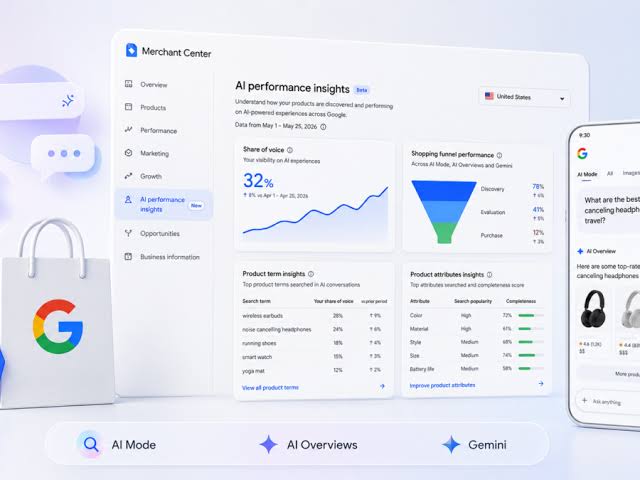
Setting a routine for checking diagnostics can prevent small problems from snowballing. Here are three practices to adopt.
Set a Weekly Routine
Schedule a weekly review of the “Needs attention” tab. This applies whether you use classic Merchant Center or Merchant Center Next. A weekly check ensures you catch new errors before they accumulate. Even if your feed is stable, product changes or data source updates can introduce issues unexpectedly.
Act on Warnings Before They Become Errors
Warnings are early indicators of potential disapproval. For instance, a missing attribute like “brand” might not immediately block the product, but Google may eventually enforce stricter requirements. Fixing warnings promptly reduces the risk of losing visibility later. The diagnostics section shows warnings separately, so you can address them proactively.
Review Hidden Non-Priority Issues
Because Google now hides non-priority issues by default, you must actively use the filter options to see them. Go into the “Needs attention” tab and adjust filters to display all issues. This helps you discover minor problems that could combine to affect performance. Regular filter reviews are essential for maintaining a complete picture of feed health.
Frequently Asked Questions
Where can I find Google Merchant Center diagnostics?
In the classic Merchant Center, click on “Diagnostics” in the left navigation. In Merchant Center Next, look for the “Needs attention” tab on the upper menu. You can also view product diagnostics inside Google Ads since Google recently moved that data into the advertising platform.
What is the difference between errors and warnings?
Errors prevent your product from serving in Shopping ads or free listings. Warnings indicate potential problems that may lead to disapproval later. Both appear in the diagnostics section, but errors are prioritised higher because they directly block visibility. Warnings should still be addressed to avoid future issues.
How often should I check diagnostics?
We recommend checking diagnostics at least once a week. If you frequently update your product feed or run promotions, consider checking more often. Regular reviews help you catch new errors early and maintain consistent product visibility across Google surfaces.
Can I see product diagnostics in Google Ads?
Yes. Google has recently made product diagnostics and promotion data available inside Google Ads. This allows you to review certain issues without opening Merchant Center. However, the full diagnostics report remains in Merchant Center, so we advise using both platforms for a complete view.
What does “Needs attention” mean in Merchant Center Next?
In Merchant Center Next, the “Needs attention” tab replaces the former “Diagnostics” section. It serves the same purpose: displaying errors, warnings, and disapproval notifications at the account, feed, and product level. The rename makes the required action clearer.
Product visibility in Google Shopping depends on a clean, error-free feed. By making Google Merchant Center diagnostics a core part of your regular workflow, you can identify and fix issues before they harm performance. Whether you use classic Merchant Center or the new “Needs attention” tab, consistent monitoring ensures that your products remain eligible to appear in front of shoppers who are searching for them.